Use this height comparison to see who is taller in a clear visual way. Enter height in cm or ft, add people, and view the result side by side with proper scale. The tool shows real height differences instantly, so you can compare quickly without confusion or calculation.
Add people to start comparing
Scroll to zoom, drag to pan
People often wonder how tall they look next to others. Numbers alone do not always give a clear idea. A visual comparison makes it easier to understand.
This Height Comparison tool helps you do that in seconds. You can add people, set their height, and see them side by side. The tool shows real differences using proper scale.
You do not need any special skills. The layout is simple. The results appear fast. This guide will show you how to use every feature in a clear way.
Let’s go step by step.
Start With the Tool Interface
Open the tool on your page. You will see a clean layout.
The screen has two main parts:
- Left side: input and controls
- Right side: visual result
The left panel helps you enter details. The right area shows the comparison.
At the top, you will also see buttons like Share, Save, and Reset.
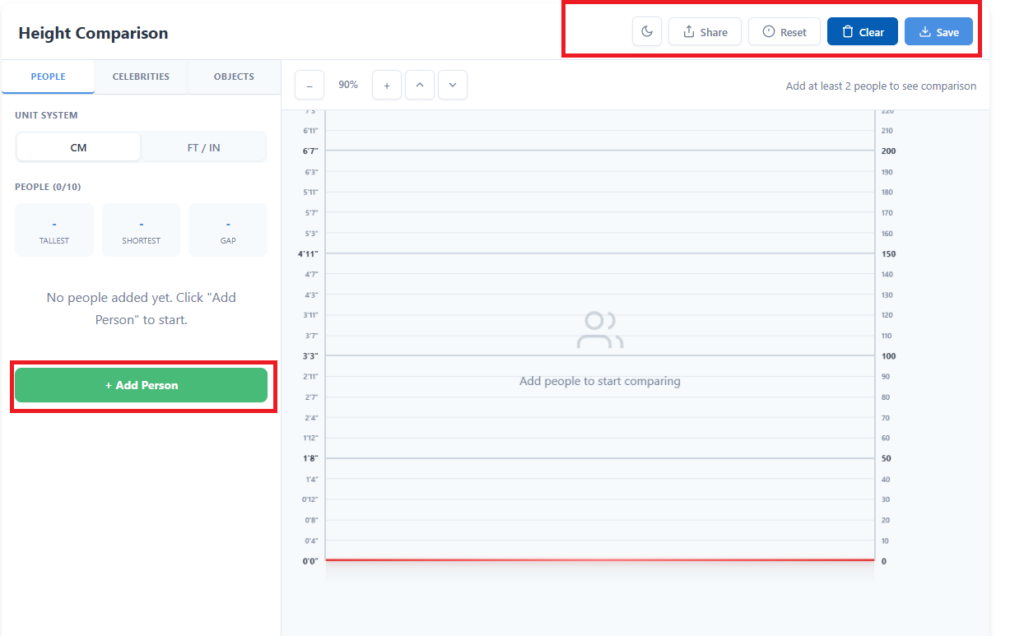
This first view helps users understand where everything is placed.
Add Your First Person
Click the “Add Person” button.
A new card will appear. This card lets you enter basic details.
You can:
- Type a name
- Set a height
- Choose a character type
- Pick a color
The tool assigns a default height if you do not change it.
Each person you add will appear in the visual section on the right.
This step is the starting point of the comparison.
Enter Height in Your Preferred Unit
The tool supports two unit systems:
- CM (centimeters)
- FT/IN (feet and inches)
You can switch between them at the top of the panel.
When you enter a value, the tool updates the result right away. You do not need to refresh anything.
Example:
- 170 cm
- 5 ft 7 in
The tool converts values correctly. You can use the unit you feel comfortable with.
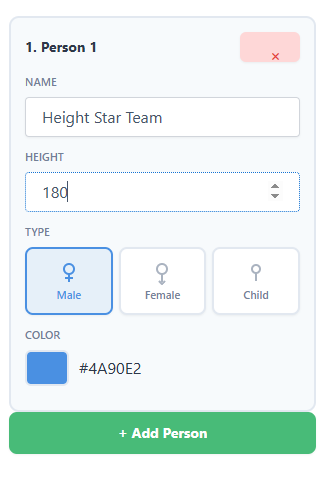
This feature helps users from different regions.
Select the Right Character Type
Each person can have a different body type:
- Male
- Female
- Child
This improves the visual look. It also makes the comparison more realistic.
Click on any type option. The tool updates the character instantly.
This step helps users match real-world appearance.
Add Multiple People for Comparison
You can add more people by clicking “Add Person” again.
The tool allows up to 10 people at a time. Each new entry appears in the visual area.
As you add more people:
- The layout adjusts
- Each character appears side by side
- Height differences become easier to see
This is where the tool becomes more useful.
See the Visual Height Comparison
Now look at the right side of the screen.
Each character stands on the same ground line. This keeps the comparison fair.
You will notice:
- Taller people appear taller
- Shorter people appear smaller
- Height difference is clear without confusion
The tool uses a proper scale. This makes the result easy to trust.
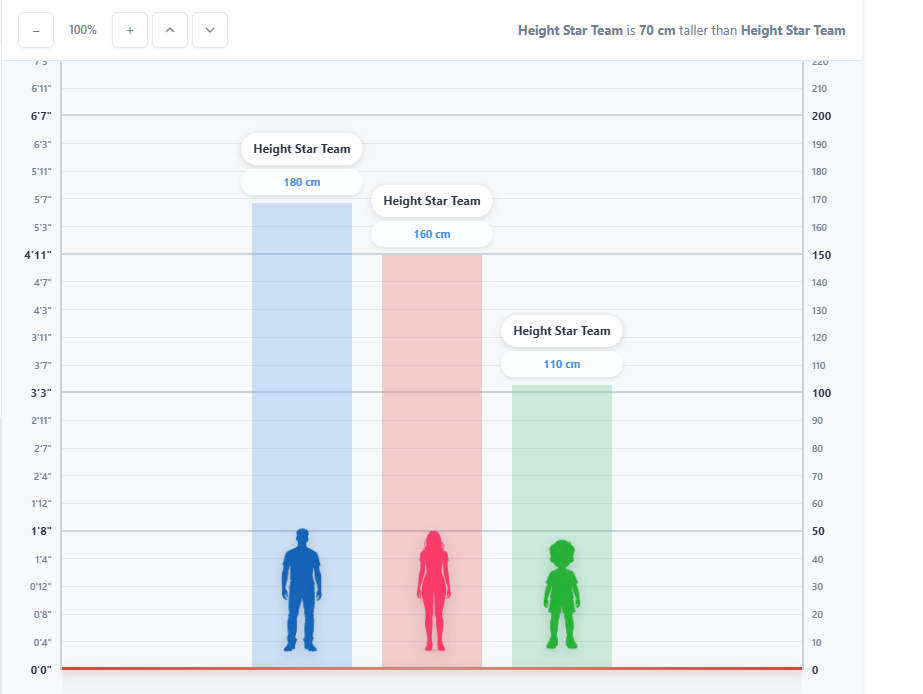
This section is the main result of the tool.
Understand the Height Scale and Rulers
You will see rulers on both sides of the chart.
- Left side shows height in feet and inches
- Right side shows height in centimeters
These rulers help you read height values easily.
Grid lines also appear in the background. They guide your eyes and improve accuracy.
This feature adds clarity to the comparison.
Check Quick Height Stats
The tool also shows useful stats:
- Tallest person
- Shortest person
- Total height difference
This information appears above the input area.
It helps you understand the gap quickly without checking each value.
This is useful when you compare many people.
Use Zoom and View Controls
Sometimes the comparison may not fit perfectly on the screen.
You can fix that with zoom controls.
You can:
- Zoom in
- Zoom out
- Move the view up or down
This makes the tool flexible.
This is helpful for large height differences.
Compare Celebrities and Objects
The tool also includes extra tabs:
- Celebrities
- Objects
You can add famous people with one click. This saves time and makes comparison fun.
You can also add objects like doors or animals. This helps you understand height in real-life context.
This feature makes the tool more interactive.
Share Your Height Comparison
Click the Share button.
The tool creates a unique link. You can copy and send it to others.
Anyone with the link can see the same comparison.

This is useful for social sharing or discussion.
Save the Comparison as an Image
Click the Save button.
The tool downloads an image of your comparison.
You can:
- Share it on social media
- Use it in blog posts
- Keep it for reference
This makes the tool more practical.
Tips to Get Better Results
- Use correct height values. This keeps the comparison accurate.
- Avoid adding too many people at once. A smaller group looks clearer.
- Use zoom controls to adjust the view when needed.
- Try different combinations. This helps you understand height better.
What Makes Height Comparison Tools So Useful
Many users enjoy visual comparison more than numbers.
This tool helps in real situations:
- Compare your height with friends
- Check celebrity height claims
- Create fun content for social media
- Understand real-life size differences
It saves time and gives clear answers.
This Height Comparison tool offers a simple and clear way to compare heights in seconds. You can add people, enter values, and see instant visual results without any confusion. The layout makes it easy to understand real differences, so you do not need to rely on guesses or calculations. You can use it for fun or for real comparisons, and you can try different height combinations to see how useful and accurate the results can be.